
Those two little buttons on the side of your phone do much more than make your music louder or quieter. They can also act as camera controls, help silence incoming calls, and perform other useful shortcuts depending on your phone.
In this guide, you’ll discover 6 lesser-known things your volume buttons can do, including several features that are easy to miss because they aren’t always explained when you first set up your phone. Some work on iPhone, some on Android, and a few depend on your specific model or settings.
1. Use the Volume Buttons to Take Photos
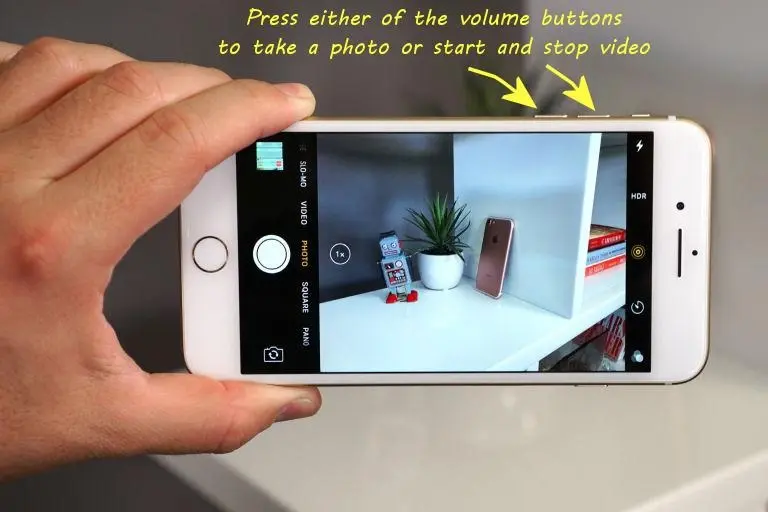
One of the most useful hidden functions is also one of the easiest to try.
When your camera is open, the volume buttons can often work as a physical shutter button. On iPhone, Apple officially supports pressing either volume button to take a photo.
This can be especially convenient when you’re taking a selfie, shooting from an awkward angle, or holding your phone horizontally.
Instead of reaching across the screen to tap the shutter button, simply position your phone, adjust your framing, and press a volume button.
It can also make taking photos feel more natural because you can keep a better grip on the phone while capturing the shot.
On different Android phones, camera-button behavior can vary by manufacturer and camera app, so the exact function may not be identical on every device.
Try it: Open your camera, point it at your subject, and press one of the volume buttons. If your phone supports the feature, it should capture the photo immediately.
2. Turn the Volume Button Into a Burst-Photo Shortcut

Taking one photo is useful—but what if your subject is moving?
On supported iPhones, the Volume Up button can be assigned to Burst mode, allowing you to capture a rapid sequence of photos instead of relying on a single shot. Apple says this can be enabled under Settings → Camera → Use Volume Up for Burst.
This can be particularly useful for photographing children, pets, sports, jumping shots, or anything else where the perfect moment lasts only a fraction of a second.
Rather than trying to predict exactly when to tap the on-screen shutter, you can hold the volume-up button and capture a series of frames.
Later, you can choose the best image from that sequence.
That’s one reason this little button can be surprisingly useful for casual photography. What looks like an ordinary volume control can become a physical camera shortcut when you’re in the right mode.
Pro Tip
If you frequently photograph moving subjects, don’t immediately delete a burst because it contains several similar-looking pictures. Take a moment to compare the frames—often the best photo is the one where the person’s expression, eyes, or movement is just slightly different.
3. Start or Stop Video Recording Without Tapping the Screen
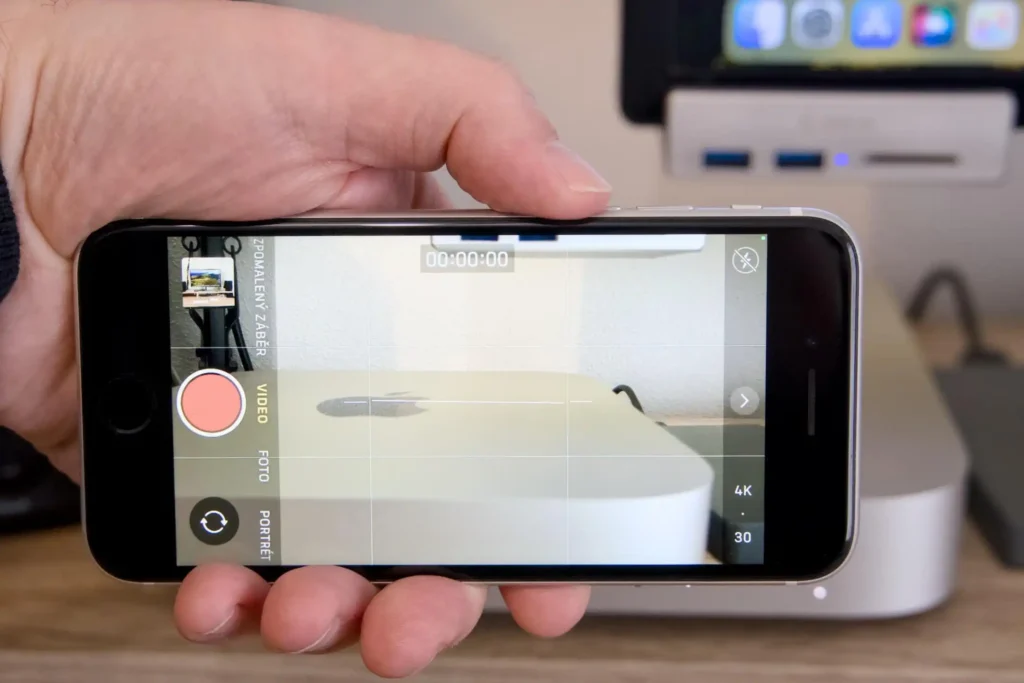
Your volume buttons aren’t limited to still photography.
On current iPhones, either volume button can be used to start and stop video recording when you’re in the Camera app. Apple also notes that pressing and holding a volume button while in Photo mode can start video recording.
This can be surprisingly convenient when you don’t want to reach for the on-screen record button.
Imagine you’re holding your phone in landscape orientation and trying to capture something happening quickly. A physical button can be much easier to reach than a small on-screen control.
It can also help when you’re recording yourself, because you can position the phone and use the side button rather than stretching your finger toward the center of the display.
The exact behavior can differ between phones and camera apps, so Android users may need to check their particular camera settings.
But if your phone supports the shortcut, it’s a simple trick that can make recording feel much easier.
4. Silence an Incoming Call Without Rejecting It
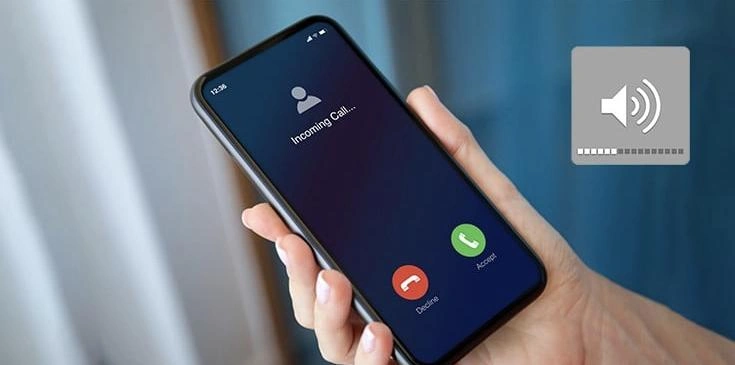
Sometimes you don’t want to answer a call—but you also don’t want to reject it.
Your volume buttons can help in that situation.
On Android, Google specifically documents that pressing a volume button when a call comes in can silence the phone’s ring.
That means the call can continue ringing without the phone repeatedly making noise.
This is handy when you’re in a meeting, restaurant, classroom, movie theater, doctor’s office, or another place where you suddenly realize your phone is ringing.
The important difference is that you’re not necessarily declining the call. You’re simply stopping the audible ringing.
On iPhone, the side controls can also be used to silence incoming calls and alerts, although the exact behavior depends on the model and controls available.
It’s a tiny shortcut, but one that can save you from awkwardly scrambling through your phone settings when your ringtone suddenly goes off.
5. Use Both Volume Buttons as an Accessibility Shortcut
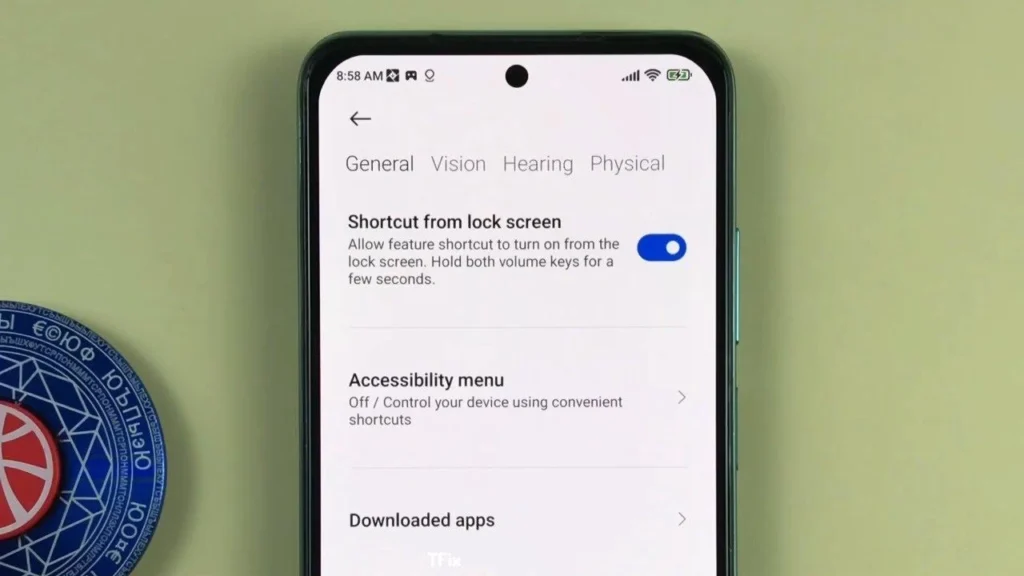
This is one of the lesser-known uses because it isn’t something most people discover accidentally.
On supported Android devices, you can configure both volume keys as an accessibility shortcut. Google explains that holding both volume buttons can activate an assigned accessibility feature or switch between accessibility apps.
Depending on the phone and the accessibility feature you’ve selected, this can provide quick access to tools such as TalkBack, magnification, or other accessibility services.
For someone who needs these features regularly, having a physical-button shortcut can be much easier than opening Settings and searching through several menus every time.
For example, Android’s magnification feature can be assigned to the volume-key shortcut, allowing you to quickly enlarge what’s displayed on the screen.
This isn’t necessarily a feature you’ll use every day, but it’s a great example of how those two buttons can do much more than simply control audio.
6. On Some Phones, the Volume Button Can Control Camera Zoom
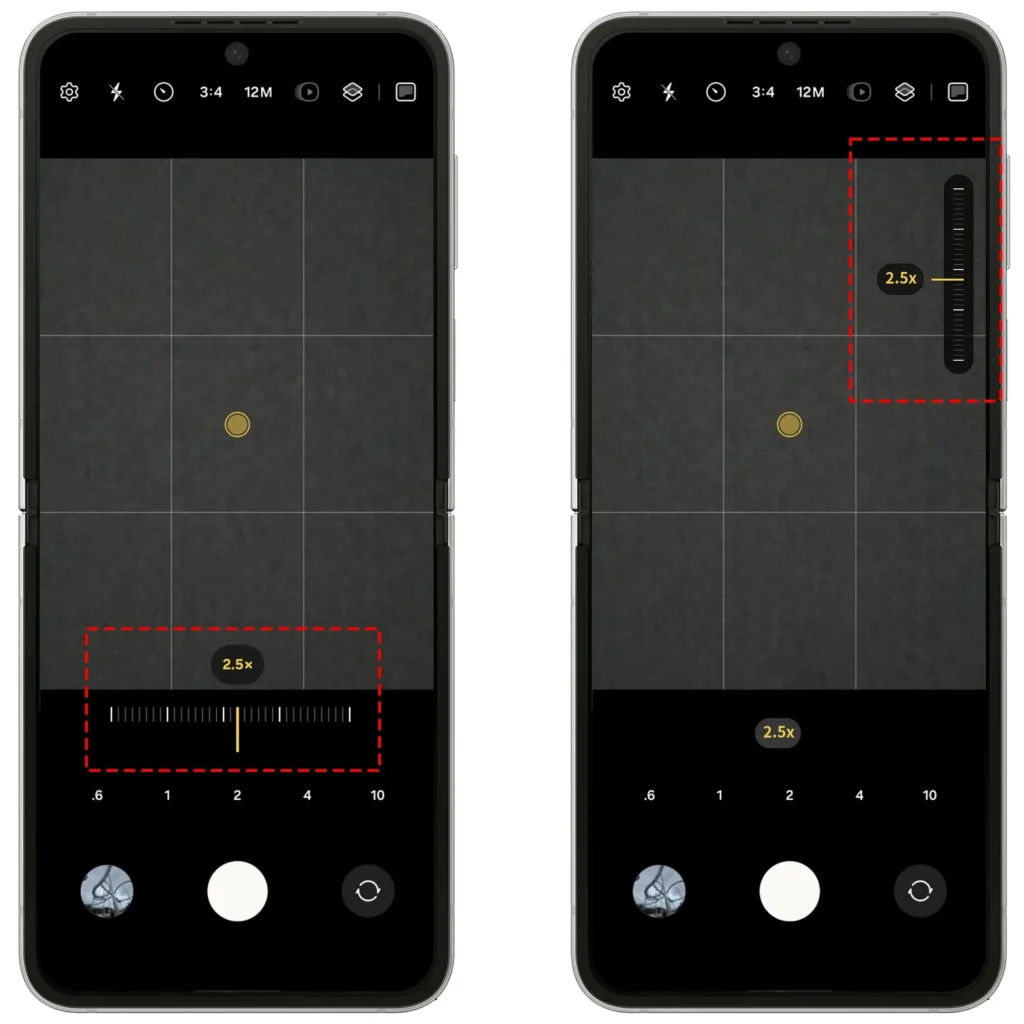
Here’s another function that depends heavily on the phone you’re using.
Some smartphones allow the volume buttons to control camera zoom instead of taking a picture.
Samsung, for example, provides a camera setting called Shooting methods, where compatible Galaxy phones can assign the Volume key to actions such as taking or recording video, zooming, or controlling system volume.
That can be particularly useful when you’re filming or photographing something from a distance.
Instead of trying to pinch the screen while holding the phone steady, you can use a physical button to control the zoom.
The exact options aren’t universal, though. Different manufacturers and camera apps offer different controls, so don’t worry if your phone doesn’t show the same setting.
How to Check
Open your phone’s Camera settings and look for options such as:
- Volume key
- Volume buttons
- Shooting methods
- Customize buttons
- Camera shortcuts
If your phone supports it, you’ll usually find the available volume-button actions there.
A Few Important Things to Remember
The biggest thing to remember is that not every volume-button trick works on every phone.
iPhones, Samsung Galaxy devices, Google Pixel phones, and other Android models can have completely different button shortcuts.
Even two phones running Android can behave differently because manufacturers often add their own camera and accessibility options.
So if one trick from this article doesn’t work on your phone, that doesn’t necessarily mean the information is wrong. It may simply mean your particular model or software version doesn’t support that shortcut.
For example, Google officially documents volume-key accessibility shortcuts on supported Android devices, while Samsung offers its own camera options for assigning actions to the Volume key.
That’s why the best approach is to check your phone’s Settings or Camera settings rather than assuming every shortcut applies universally.
Quick Takeaway
Your volume buttons may be small, but they’re surprisingly useful.
Depending on your device, they can help you take photos, capture bursts, control video recording, silence incoming calls, activate accessibility shortcuts, and even control camera zoom.
The most useful ones to try first are the camera shortcuts. They’re simple, practical, and available on many modern phones.
And if you’re using Android, it’s worth checking your accessibility settings too. Google currently supports assigning both volume keys to accessibility shortcuts on compatible devices.
| ❌ Myth | ✅ Fact |
|---|---|
| Volume buttons are only for making the sound louder or quieter. | Many phones allow them to perform additional actions, especially inside the Camera app or accessibility settings. |
| Every smartphone has exactly the same volume-button shortcuts. | Features vary by manufacturer, model, operating system, and app. |
| Pressing a volume button during an incoming call always rejects the call. | On Android, pressing a volume button can silence the incoming ringtone without necessarily rejecting the call. |
| Volume buttons can never be customized. | Some phones allow their function to be changed for camera controls or accessibility shortcuts. |
| You need to install a special app to use every hidden button function. | Many useful shortcuts are already built into the phone’s operating system or camera app. |
One last tip: before trying a button combination you found online, check what it does on your particular phone. Some combinations can trigger important features—for example, on iPhone, holding the side button with either volume button can start Emergency SOS on supported configurations.